How to Generate a Single BIR Form 2307 PDF: Create, Download, or Email It

Generating a single BIR Form 2307 PDF means creating one Certificate of Creditable Tax Withheld at Source at a time, rather than converting a batch of vendors at once. In BIR Online Tools’ free BIR Form 2307 generator, you enter payee and payor details, watch a live preview assemble the certificate as you type, and then choose to download the finished PDF or email it straight to the payee. This guide walks through every screen — starting from the dashboard, clicking into BIR Certificates, and ending at a finished, downloadable PDF — with a screenshot at each step and a short screen recording of the whole flow.
This guide is part of the BIR Form 2307 series, and builds on what BIR Form 2307 is and when you must issue it. It covers the fields the single generator needs, how the live preview and autosave behave, and how download and email delivery differ — including what’s required before each option becomes available.
Open the BIR Form 2307 Generator FREE →What does the single BIR Form 2307 generator do? #
The single generator is a one-record workspace: you fill in one payee and one payor, and the certificate takes shape in a live preview beside the form, ready to check before it ever leaves your screen. Think of it as a counter-service window rather than an assembly line — you watch each certificate get built, line by line, before it goes out the door.
That distinction matters because BIR Online Tools also ships a separate bulk path for high-volume filing periods.
| Single generator | Bulk generator | |
|---|---|---|
| Input | One payee typed into a form | Excel file with many vendor rows |
| Output | One live-previewed PDF | A merged batch of PDFs |
| Best for | One-off certificates, corrections, walk-in requests | Quarter-end runs across many vendors |
| Delivery | Download or direct email, per certificate | Download as a batch |
Before you start: set up your company profile once #
Set your payor details once under Company Info, and every certificate you generate afterward reuses them automatically. The payor’s TIN and branch code on the BIR Form 2307 payor tab are locked, read-only fields pulled from your active Company Profile — they are not typed per certificate. Add a company under Company Info in the sidebar (registered name, TIN, branch code, RDO code, and business address), save it, and it becomes the active company shown across the dashboard, forms, and DAT generators.

This is a one-time setup per company. If you skip it, the payor tab’s TIN and branch code stay blank, and the generated certificate will be missing the payor’s TIN.
What payee and payor details do you need before generating the PDF? #
The generator needs enough identifying detail on both sides of the transaction — payee and payor — to produce a certificate that will hold up if the payee submits it against their own return. Leave a required field blank or malformed, and the preview simply won’t render.
Payee (vendor) details #
- Payee’s full registered name
- Payee’s TIN (9 digits)
- Branch code (minimum 3 digits)
- Applicable ATC (Alphanumeric Tax Code) for the income type
- Income and tax-withheld amounts (must be greater than zero)
- Payee email address (only required if you plan to send the certificate by email)
Payor (withholding agent) details #
- TIN and branch code (read-only, pulled from your active Company Profile)
- Registered company or individual name and business address
- Signatory name and designation for the certificate
- Optional print/layout preferences for the rendered PDF
Validation at a glance #
| Field | Requirement | What happens if it’s wrong |
|---|---|---|
| Payee TIN | Exactly 9 digits | Preview withholds generation until corrected |
| Branch code | At least 3 digits | Field flagged, no PDF rendered |
| ATC code | Must be selected/valid | Certificate cannot compute the correct tax line |
| Income amount | Must be a positive number | Preview blocked until a valid amount is entered |
Picking the wrong ATC is one of the more common slip-ups on this form — see common BIR Form 2307 mistakes and how to correct them if you’re not sure which code applies to your transaction.
How does the live PDF preview work? #
As soon as the required fields are valid, the generator renders the certificate automatically — there’s no separate “Generate” button to click. Every keystroke updates a short-lived draft; once the draft settles and passes validation, the PDF preview refreshes beside the form so you can proofread names, amounts, and the ATC line before committing to a download or email.
Each time a new valid version is produced, it’s also saved to your certificate records automatically. That autosave happens independently of download or email — so even if you close the tab before choosing a delivery option, the certificate you built isn’t lost; it’s sitting in your records the next time you sign in.
How do you create a BIR Form 2307 PDF certificate step by step? #
Creating a single certificate takes six steps, starting from the dashboard and ending with a delivered PDF. There’s no separate “generate” click — the live preview keeps pace with the form, so reviewing it is really just a final read-through before delivery. The worked example below uses a fictional vendor, Dela Cruz Consulting Services, billing a fictional withholding agent, Mabuhay Trading Corporation, ₱50,000 for services under ATC WC160 (local supplier of services, 2% rate under RR No. 11-2018) — so every screenshot shows real, computed numbers rather than empty fields.
1. From the dashboard, click BIR Certificates #
Open BIR Online Tools and, from the dashboard, click Open BIR Certificates (or BIR Certificates in the sidebar).

2. Open BIR Form 2307 #
The BIR Certificates hub covers both certificates it generates — BIR Form 2307 for creditable withholding tax and Form 2316 for employee compensation. Click Open Form 2307.

This opens the single generator, empty and waiting for payee details, with a live preview panel on the right that says “Fill the form to see the PDF preview” until the required fields validate.

3. Fill in the payee (vendor) tab #
Enter the vendor’s name, TIN, branch code, address, and the ATC for the income type. Type an ATC code and the generator auto-suggests a match — selecting it fills in the nature of expense and computes the tax rate and tax amount from the income payment you enter.

4. Switch to the payor (agent) tab #
The payor’s TIN and branch code are already filled in from the active Company Profile set up earlier. Add the signatory’s name and position — these print on the certificate’s signature block.

5. Set signatory and print options, if needed #
Below the payee/payor form, the Print options panel lets you enable a signature image and adjust its horizontal and vertical offset on the printed certificate. This is optional — the certificate still generates without it. If you’re signing digitally rather than by hand, see whether an electronic signature is allowed on BIR Form 2307.
6. Review the live preview, then download or email #
Switch back to the payee tab and the live preview renders the finished certificate beside the form — payee and payor information in Parts I and II, and the income payment, ATC, and computed tax withheld in Part III. Proofread the TIN, ATC, and tax amount against your source documents before delivering it.

Watch the full flow #
The recording below plays back the same six steps in real time — from the dashboard, into BIR Certificates, through the payee and payor tabs, to a completed live preview — so you can see the pacing of the live preview and tab switches without re-reading each step.
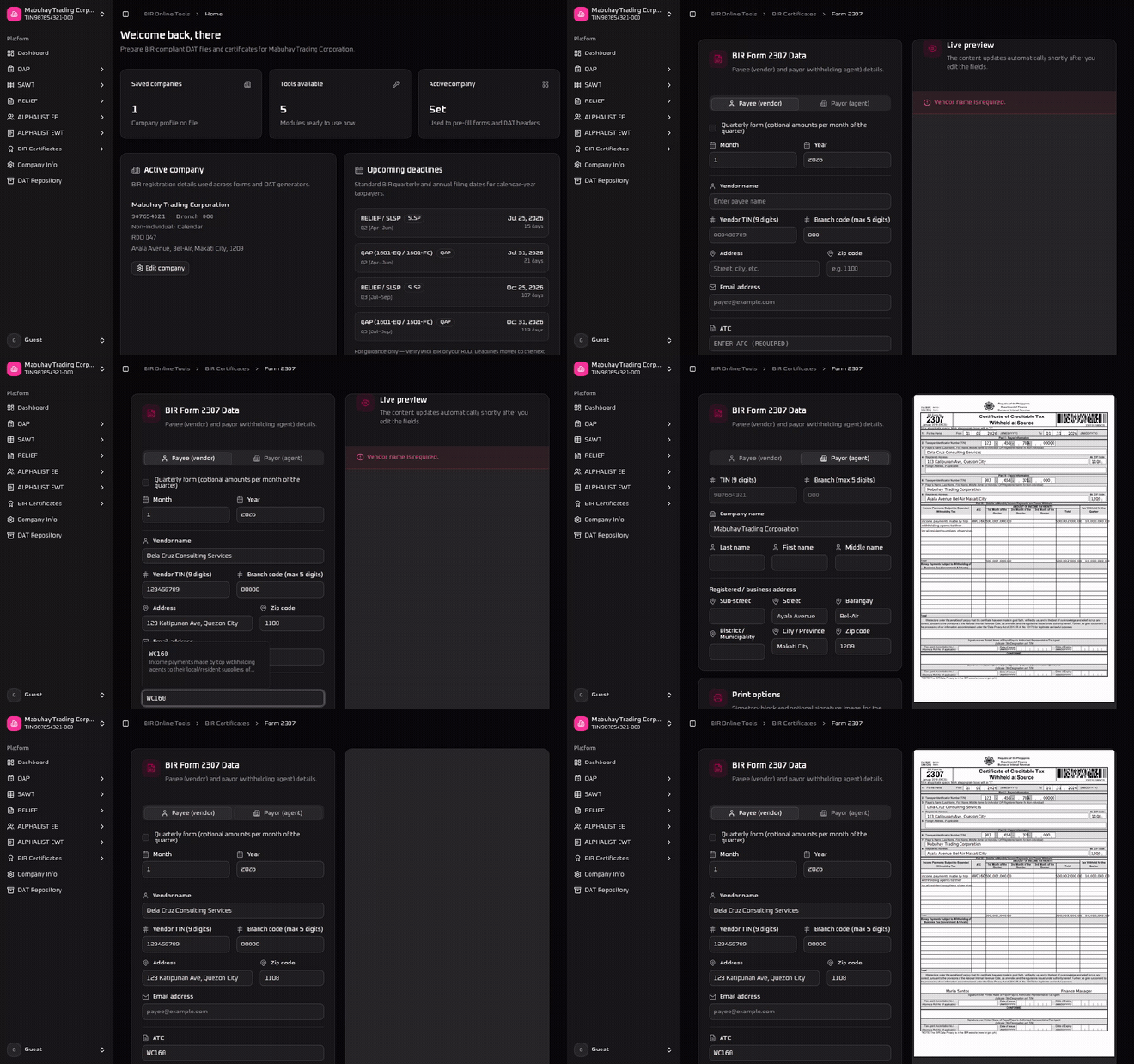
What are your options to deliver the certificate — download or email? #
Once the preview is correct, BIR Online Tools gives you two ways to get the certificate to where it needs to go: pull it down onto your own device, or have it delivered straight to the payee’s inbox. Both start from the same validated PDF — the difference is what happens after you click.
| Download | ||
|---|---|---|
| What happens | The PDF saves directly to your device as a file | The PDF is sent as an attachment to the payee’s email address |
| Requirements | Signed-in account | Signed-in account, active company profile, payee email address |
| Best for | Printing, archiving, attaching to your own outgoing mail | Payees who just need a digital copy, no printing involved |
| Rate limits | None | Limited per user per hour, with a short cooldown between sends |
Download #
Downloading hands you the raw PDF file, generated client-side from the same data driving the live preview, so what you saw is exactly what you get. It requires being signed in, which is also what lets the certificate stay linked to your saved records.
Email #
Emailing skips the download step entirely: the certificate is sent as an attachment directly from BIR Online Tools’ servers to the address in the payee’s email field, using your active company profile as the sender identity. There’s no need to save the file locally first, attach it to a separate message, or manage a mail client — one action both generates and delivers the certificate. Because this reaches an external inbox, sends are rate-limited per user with a brief cooldown between emails, and each successful send is marked against the certificate in your records so you can tell at a glance whether a payee has already been emailed.
Frequently asked questions #
What is the difference between the single and bulk BIR Form 2307 generator? #
The single generator creates and lets you review one Certificate of Creditable Tax Withheld at Source at a time with a live preview, while the bulk generator processes many vendors at once from an uploaded Excel file and produces a merged batch of PDFs.
What payee and payor details are required to generate a BIR Form 2307 PDF? #
You need the payee’s name, a 9-digit TIN, a branch code of at least 3 digits, the applicable ATC code, and a positive income amount, plus your registered payor details, before a certificate can be generated.
Do I need an account to download a BIR Form 2307 certificate? #
Yes. Downloading a generated BIR Form 2307 PDF requires signing in to your account, which also lets the certificate be saved to your records for future reference.
How does emailing a BIR Form 2307 certificate work? #
Emailing sends the PDF as an attachment directly to the payee’s email address from the server, using the payee email entered on the form and your active company profile — no separate email client or manual attachment needed.
Is there a limit to how many BIR Form 2307 certificates I can email? #
Yes. Email delivery is rate-limited per user, with a short cooldown between sends, which guards against accidental duplicate emails and abuse.
Why are the payor TIN and branch code fields locked on the payor tab? #
The payor’s TIN and branch code are pulled automatically from your active Company Profile rather than typed per certificate. Set them once under Company Info and every BIR Form 2307 and Form 2316 you generate afterward reuses them, while the payor’s name, address, and signatory details stay editable per certificate.
Summary #
A single BIR Form 2307 PDF is built one payee at a time: set up your company profile once, click into BIR Certificates from the dashboard, fill in the payee and payor tabs, and let the live preview confirm the certificate is correct — it’s autosaved to your records the moment it validates. From there, delivery is a choice rather than a fixed pipeline: download the file yourself for printing and archiving, or email it directly to the payee’s inbox in one step. For high-volume filing periods, the bulk generator covers the same certificate from an Excel file instead of a form.
Generate Your BIR Form 2307 PDF FREE →